

Why a Video-Call Preview Is Worth Checking
A video call is a practical rehearsal for a common viewing distance: close enough for the upper face and parting to be visible, but compressed by a small camera feed. It gives you a repeatable way to compare appearance under your own desk light or window light. It does not replace seeing a wig in person, and it should not be treated as proof of a material, fit or exact colour.
Ask one narrow question before you switch on the camera
Start with a question that can be seen on screen. Examples include whether the part remains readable when you move slightly, whether scalp contrast looks stronger from one side, or whether the line feels too sharp in a tight crop. A vague question such as “does it look natural?” makes it harder to decide what to change. One visible question per test keeps the comparison useful.
If your broader aim is an understated result, first note which features you mean by that: a softer transition at the part, a less obvious colour contrast, or a hairline that does not pull focus. The natural-looking wigs guide is a useful next reading route for separating those visible ideas. On the call, record only what the preview actually shows rather than assuming why it appears that way.
Know what the preview cannot settle
A screen preview cannot tell you whether a cap will feel comfortable for a full day, whether a listed shade is the same in every room, or whether a particular item can be supplied. It is also not a reliable way to judge how securely a wig sits. Use it as a comparison tool for the visible parting and upper-face framing, then ask for confirmation on the practical points that matter to you.
Set Up a Repeatable Video-Call Lighting Test
Create a baseline before experimenting. Sit in the position where you would normally take a call, place the camera near eye level, and keep the same plain background for each short recording or preview. Use the same part placement and do not change several variables at once. The goal is to reveal a useful difference, not to create a dramatic before-and-after image.
Keep the camera view stable first
Frame from the chest or shoulders upward so the part, hairline and face are visible together. A camera far above the eyes makes the top of the head dominate. A camera far below can hide the part or create shadows that do not match everyday calls. Keep a fixed distance from the lens, and make a ten-second clip before you adjust a lamp or move near a window.
Use the preview inside the platform you actually use. The wigs collection route can help you organise a later product conversation, but it cannot substitute for seeing your own calling environment. A laptop camera, phone camera and external webcam may give different crops and processing. Label each clip with the device rather than comparing unnamed screenshots days later.
Change one lighting condition at a time
Begin with soft light facing you, such as daylight coming from in front of the face or a diffused lamp positioned near the camera. Then make a second clip with the light shifted to one side. A third clip with stronger overhead or back light is useful because it often creates the conditions that make a parting harder to read. Do not stare only at the first frame; turn your head slowly and return to centre.
Platform controls may change the evidence. Zoom says its video tools can adjust low light, add portrait lighting, apply soft-focus appearance touch-up, filters and auto-framing, while the preview changes with adjustments. Its official video guidance is a good reminder to make one plain recording with these visual effects off before deciding what the wig itself looks like.
- Make a short baseline clip with the camera at eye level and no virtual background, filter or appearance smoothing.
- Repeat the same head turn with front, side and more challenging back or overhead light; write down the order.
- Save the device name, platform and lighting position with each clip, because an unlabelled screenshot has little comparison value.
Read the Parting Instead of Chasing a Perfect Frame
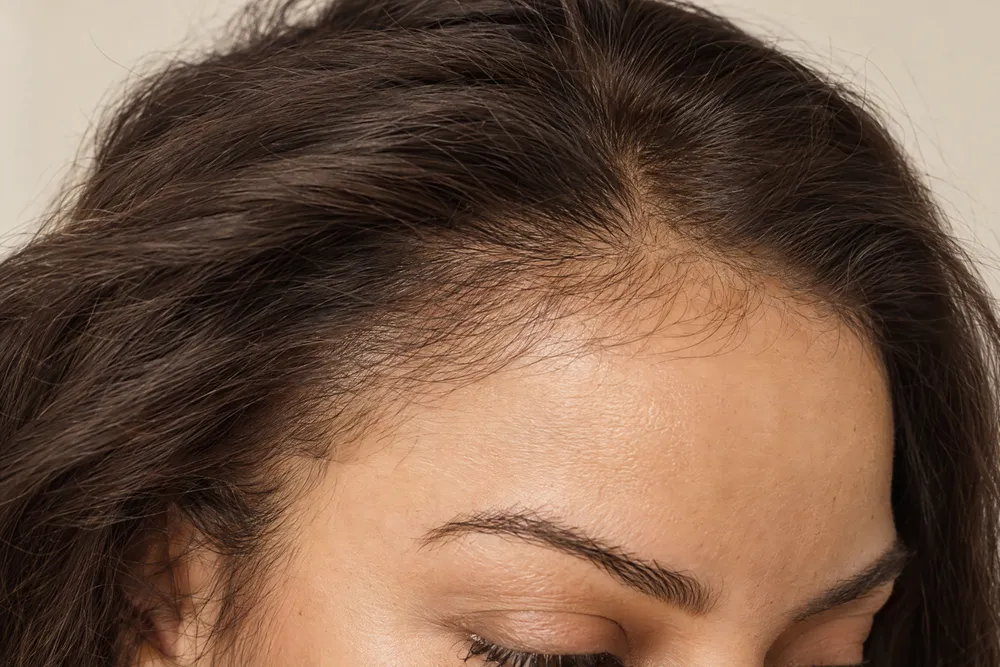
Once the setup is stable, inspect the parting in motion. You are looking for a pattern: where the line appears darkest or lightest, whether it seems to jump as you turn, and whether a change remains after you return to the original angle. A pause on one frame can be useful for notes, but movement helps separate a momentary reflection or shadow from a repeatable visual concern.
Look at contrast, edge and continuity
First, look at the contrast between the part area and the surrounding hair. Next, look at the edge: does it look even, abruptly defined, or simply harder to see in one light direction? Finally, look for continuity as the head moves from centre to a modest side angle. These are observation words, not pass-or-fail ratings. They give you language for a productive enquiry without claiming a screen can diagnose construction.
A lace front wig page may be relevant if your concern also includes the front hairline, but keep the two observations separate. In your notes, mark “parting under top light” and “front edge when turning” as different questions. A hairline-focused product route does not automatically answer a parting-focused question, and the reverse is also true.
Check a small movement sequence
Use the same sequence in every clip: face forward, turn a little left, return to centre, turn a little right, then lower and raise the chin. This takes only seconds. It prevents a common mistake in which one accidental angle becomes the whole judgement. If the part is only concerning in one position, record the exact movement and light direction instead of trying to remember it from a general impression.
Separate Colour, Hairline and Cap Questions
Parting appearance can be influenced by more than the line itself. Darker or lighter surrounding hair can change the apparent contrast. A close crop can also bring the front hairline into the same visual field. Meanwhile, comfort and placement are physical questions that a call preview cannot answer. Sorting these issues stops one note about “the top” from becoming an unclear request.
Name the colour observation plainly
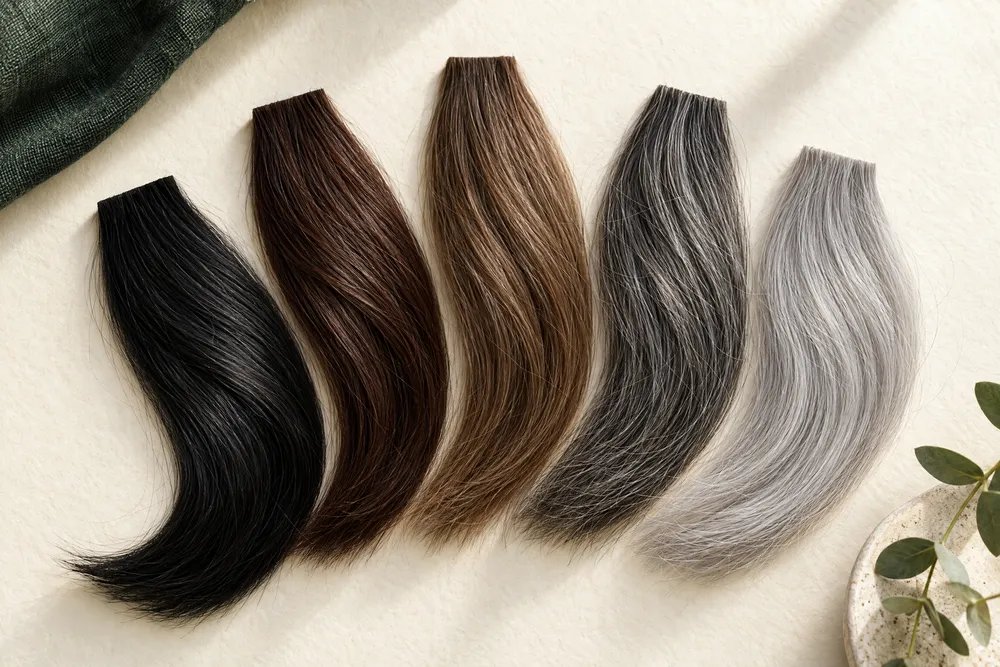
Write down what you see without turning it into a claim about a shade. For example: “under side light, the part appears brighter than the lengths,” or “under the desk lamp, the dark area beside the part appears more defined.” If you are comparing dark options, the black wigs route can give a focused starting point for the conversation. The specific shade still needs to be checked in context rather than inferred from your webcam alone.
Do not try to solve a lighting issue by assuming you need a different colour. First repeat the test with the light moved nearer the camera and with the virtual background off. If the same concern remains, describe the room, device and contrast you observed. That is a clearer basis for asking which options you should compare than sending a message that says only “it looks too dark” or “the part disappears.”
Keep brand browsing and construction confirmation separate
If you already have a brand preference, browse Jon Renau wigs as a catalogue path, then bring the parting observations into the enquiry. A brand page is not evidence that every item has the same cap, fibre, colour behaviour or availability. Ask about the named item or options being discussed, and confirm the features that matter to your particular preview concern.
Turn Observations Into Useful Enquiry Questions
The best output from the test is a compact note, not a verdict. Include the device, platform, lighting direction, part placement, and the moment that prompted your question. Attach two short clips or stills only if they show genuinely different conditions. This lets someone understand the decision context without asking them to guess what happened outside the cropped frame.
Use a three-part question format
Use this simple format: “I saw X under Y condition; I want to compare Z; what should I confirm?” For instance, X might be a brighter-looking line, Y might be side window light, and Z might be a different part placement or colour direction. This wording is specific without presuming the answer. It also makes it easier to separate a visual request from a question about comfort, styling or timing.
If cost is part of the decision, review wig prices in Hong Kong as a separate pricing discussion rather than using a flattering screen capture to determine value. Explain the kind of comparison you need and ask what is included in the option being considered. A clear scope question is more useful than assuming two items with similar-looking previews are directly comparable.
Compare the service conversation, not only screenshots
You may also want to consider what a useful consultation should clarify: the visible concern, how the preview was made, the options you want to compare, and the questions that require an in-person check. The compare wig shops in Hong Kong guide provides a route for thinking through that conversation. Keep your own clips as context, but ask for current confirmation of any product, service or quote detail.
If grey blending is among the features you are exploring, do not rely on a webcam to estimate a percentage or assume a catalogue colour is a custom instruction. State what you noticed around the part and ask whether a particular request can be discussed. The custom wig grey percentage page is a more precise route for that specific enquiry than a general note about lightness.
- Device and platform: name the phone, laptop or webcam and the call app used for the preview.
- Lighting and movement: state where the strongest light was and which head turn changed the parting view.
- Decision question: ask for the next comparison or confirmation instead of presenting the clip as proof of a feature.
Avoid False Signals Before You Send the Record
Before you act on the clips, run one clean comparison. Switch off virtual backgrounds, colour filters and appearance smoothing. Check whether the platform mirrors only your own view. Then make the same movement again under the original light. This short reset can prevent a platform effect, an unexpected crop or a reflected view from becoming a misleading note about the parting.
Check mirror, brightness and soft-focus settings
Microsoft notes that Teams for personal use can adjust brightness, mirror your video and add soft focus, and that the mirror setting changes only the view for you. Its device-settings guidance shows why a self-preview should not be casually assumed to match every participant’s view. Check the setting names on your own platform before you compare left and right sides of a part.
Send a compact record and a focused next step
Choose the two or three clips that best demonstrate distinct lighting conditions. Add a brief note describing the part placement and the exact point you want to compare. Do not send dozens of near-identical captures. A short, ordered record makes it easier to identify whether you need a colour conversation, a hairline conversation, an in-person fit check, or simply a different everyday light position.
For the next step, ask OWNSTRAND about the specific visible concern and the option you are considering. A video-call lighting check is most valuable when it narrows the question, not when it pretends to settle every selection detail. Current item details, possible custom requests and any quote should be confirmed directly in the enquiry.
| Clip condition | What to observe at the parting | What to note for later |
|---|---|---|
| Baseline: front-facing soft light | Overall contrast and how clearly the part is visible | Camera height, device and normal call settings |
| Light moved slightly to the left | Whether one side becomes more defined or reflective | Light direction and any change after a small head turn |
| Light moved slightly to the right | Whether the earlier difference reverses or remains | Part placement and the moment in the movement sequence |
| Overhead or back-light challenge | Shadows, silhouette and loss of readable detail | Whether the effect occurs in a typical work or home location |
| Plain preview with effects off | Differences from brightness, smoothing or virtual-background processing | Which setting was disabled and whether the concern still appears |
Ask OWNSTRAND on WhatsApp
Tell us the style you have in mind. We can discuss the options, quotation and arrangements before you decide.
Ask OWNSTRAND on WhatsAppBefore you choose
Should I judge a wig parting from one video-call screenshot?
No. Use a short movement sequence and at least a few light positions. One screenshot may capture a transient shadow, exposure change or flattering angle. A labelled baseline plus controlled variations gives you a more useful question for an enquiry.
Do video-call filters change what I see at the parting?
They can change the preview. Brightness adjustment, soft focus, portrait lighting, filters and framing tools may alter the visual context. Keep one plain clip with effects off, then separately keep your normal-call version if it reflects how you will usually appear.
What should I ask after I notice a parting concern on camera?
State the device, light direction, part placement and movement that revealed the concern. Then ask what option or detail you should compare and which points need direct confirmation. Do not assume a screen preview confirms fit, stock, shade or construction.
Further reading
- Zoom Support: Enhancing your video in ZoomSupports the statement that Zoom offers lighting adjustment, portrait lighting, appearance touch-up, filters, HD video and auto-framing, and that its preview changes with adjustments.
- Microsoft Support: Manage your device settings in Microsoft Teams for personal useSupports the statement that Teams personal-use settings include brightness, mirroring and soft focus, and that mirroring changes only the viewer's own view.
- Google Meet hardware Help: Turn on automatic video lighting adjustmentSupports the caution that automatic video-lighting adjustment can enhance brightness when underexposure is detected and is device-specific.